Every snag, photograph and checklist sits on the element it belongs to.
Snagtwin is commissioning software built on the building model. Click an element in the IFC model and record against it: photographs, checklists, site observation reports and actions. The status of every element is reported from there, on the PC, on the phone and in the documents both of them produce.
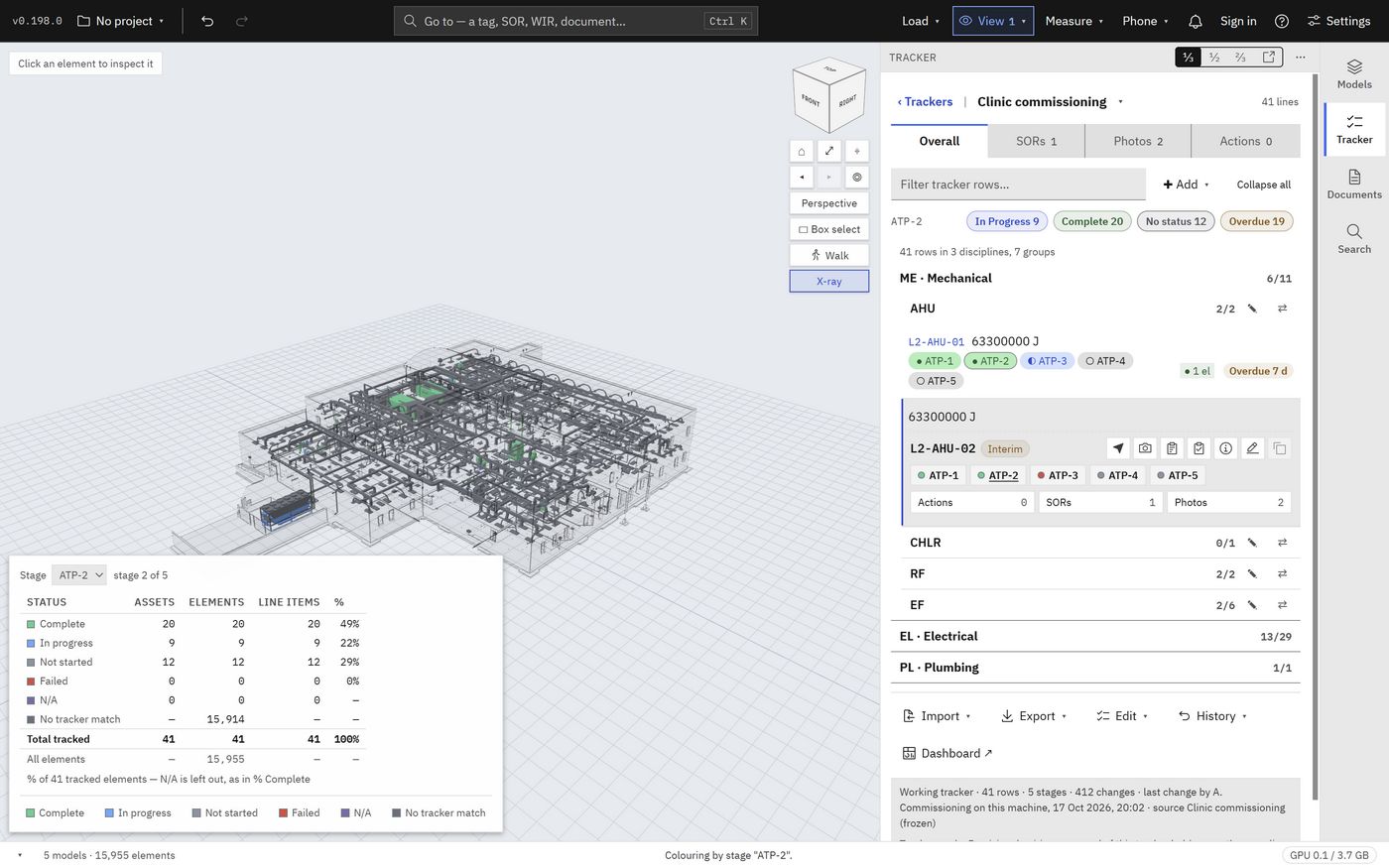
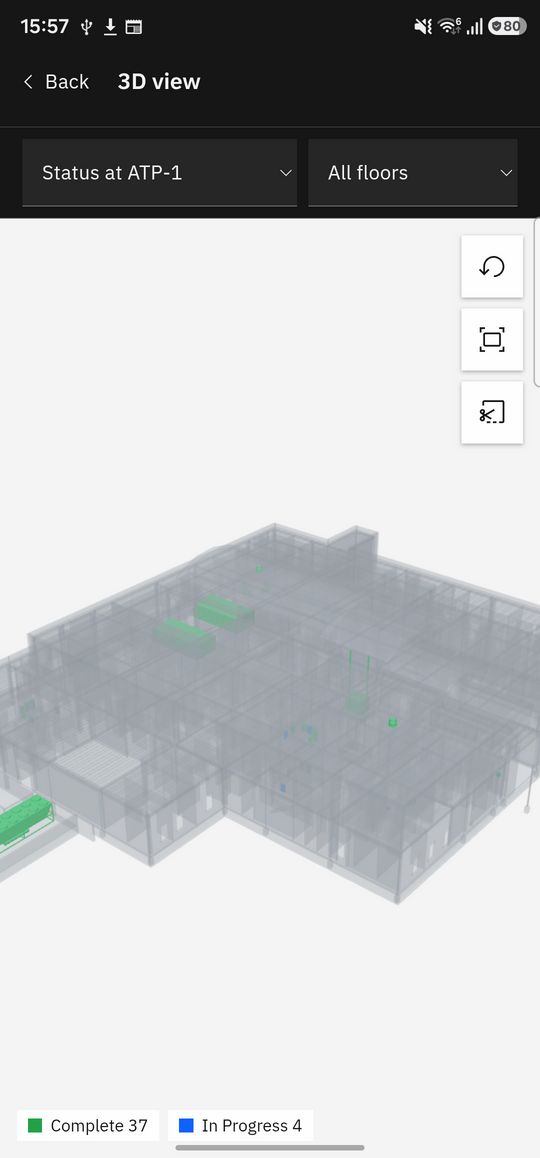
The tracker's status at a stage, painted on the model. Every picture on this page is the app's own screen, on the demonstration project.
Commissioning through BIM.
Snagtwin for Windows · Snagtwin Field for Android
What Snagtwin is
One record for every element, from the model to the report.
Any IFC export
Snagtwin reads the IFC models every discipline exports, from any authoring tool. Where the software has to decide, it measures the model and a person judges: nothing is tuned to one project's naming.
The PC and the phone
Snagtwin on the PC and Snagtwin Field on the phone work on one project: the same line items, photographs, site observation reports and drawings, with the phone working offline when the signal drops.
Documents from the record
Site observation reports, weekly reports, action plans and document registers are generated from the same records, in PDF and Excel, under your company's letterhead and your client's logo.
How it works
Three steps, from the model to the status of every element.
Load the models and the tracker
Open the IFC models of every discipline as one federated view. Build the working tracker from a specialist's take-off, from a workbook or from the model's own families, with your stages and their statuses.
Record on the element
Click an element, or scan its QR label on site, and record against it: photographs, checklists, site observation reports and action items. Each record carries the element's tag, floor, room and model.
Report from the record
Status by stage, painted on the model and counted on the dashboard: charts, S-curves, the SOR register, inspection requests and documents, and the reports generated from them.
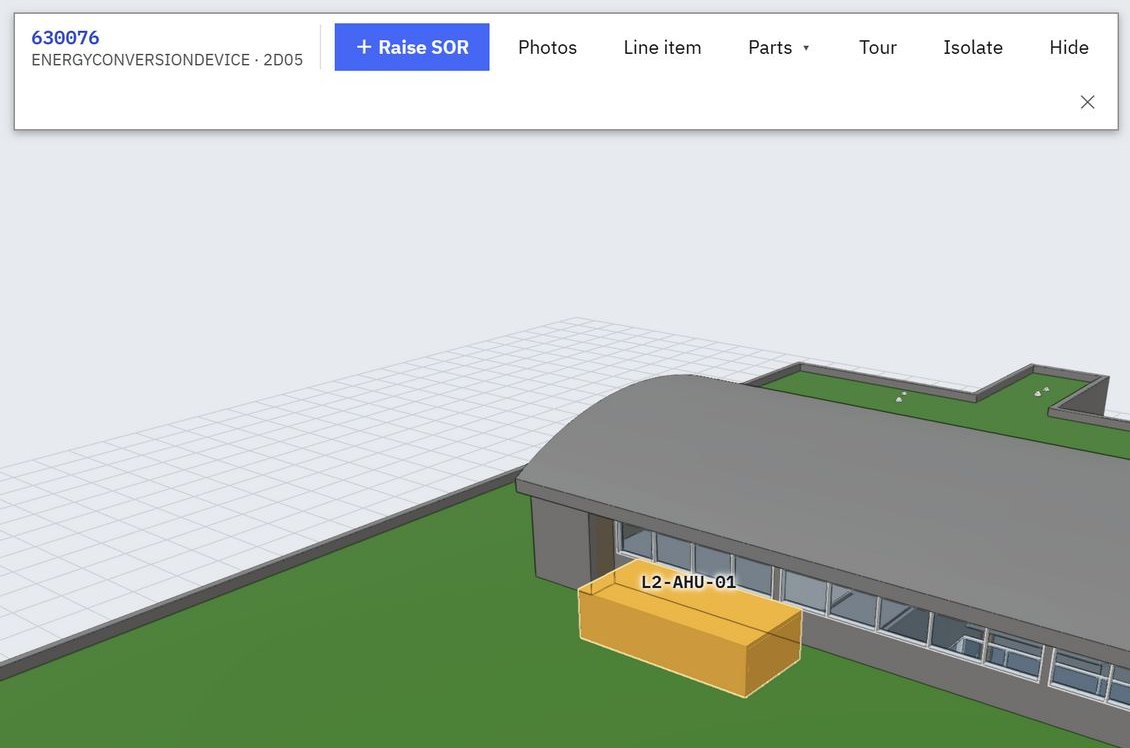
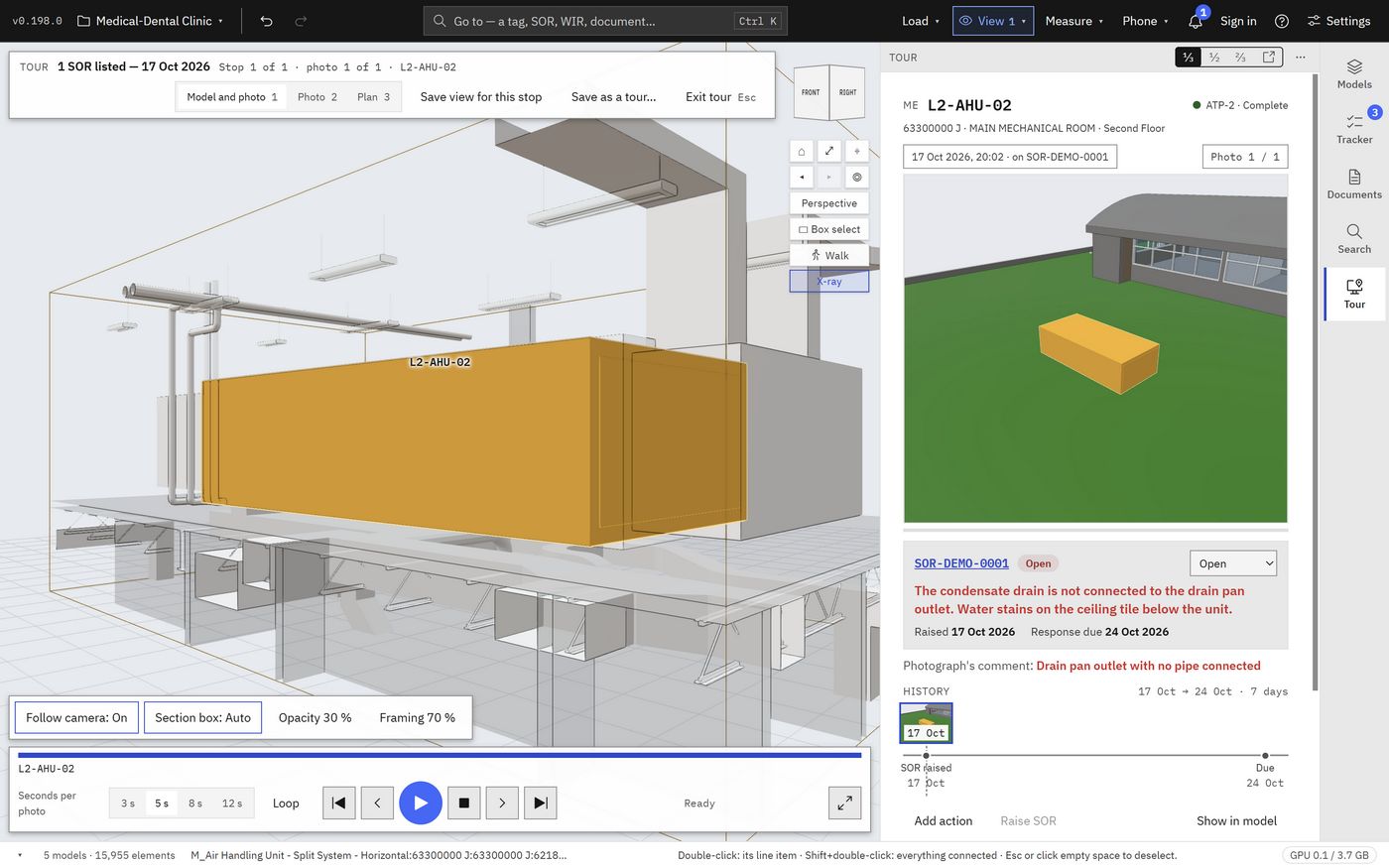
The selected element shows in Amber, through the walls in front of it.
On the PC
The model is the index to every record.
Snagtwin opens the federated models of a whole building, keeps the working tracker beside them and puts each record where it belongs.
Stages and status, on the model and the dashboard
Each line item moves through your stages, and its status at each stage is one click in the tracker, the element card or the phone.
Status view paints every element in its status colour at the stage you choose
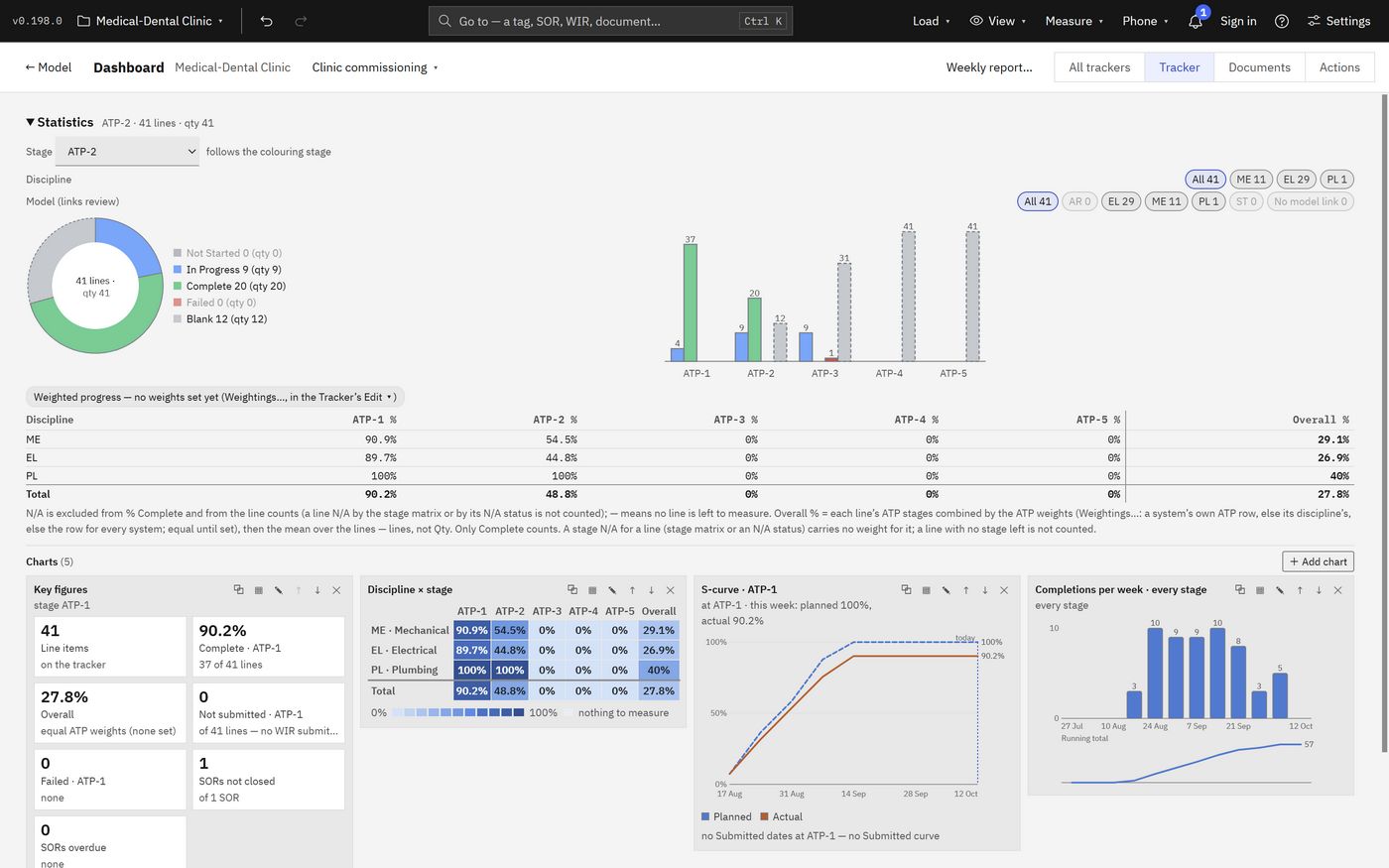
Weighted progress by discipline and stage, S-curves and completions per week
Every change kept in a chained change log; any batch can be reverted
Import and export the tracker as Excel, with templates for each upload
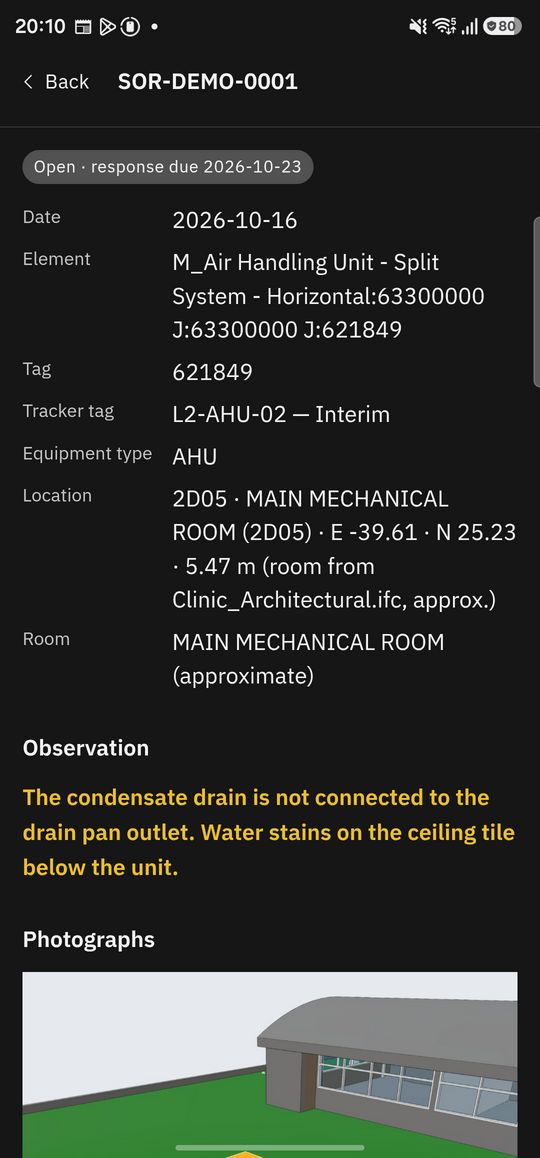
Site observation reports, raised on the element
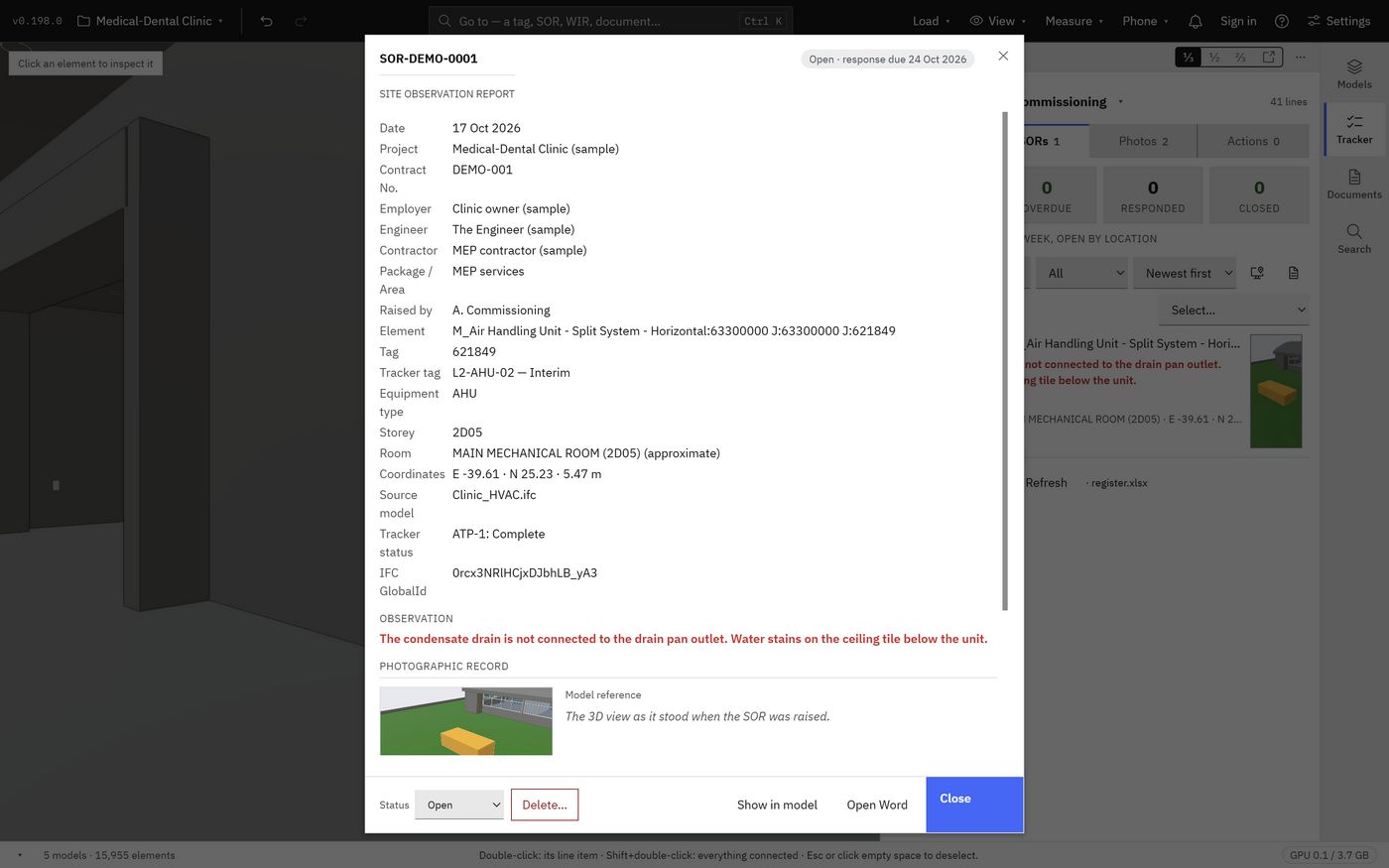
An SOR takes its element's details from the model and the tracker, so nobody types a tag, a floor or a room again.
Numbered by the project's counter, never twice
Photographs numbered, each with its comment, and marked up in Amber
The model view as it stood when the SOR was raised
Word, PDF, the Excel register and BCF; Open, Responded and Closed with response dates
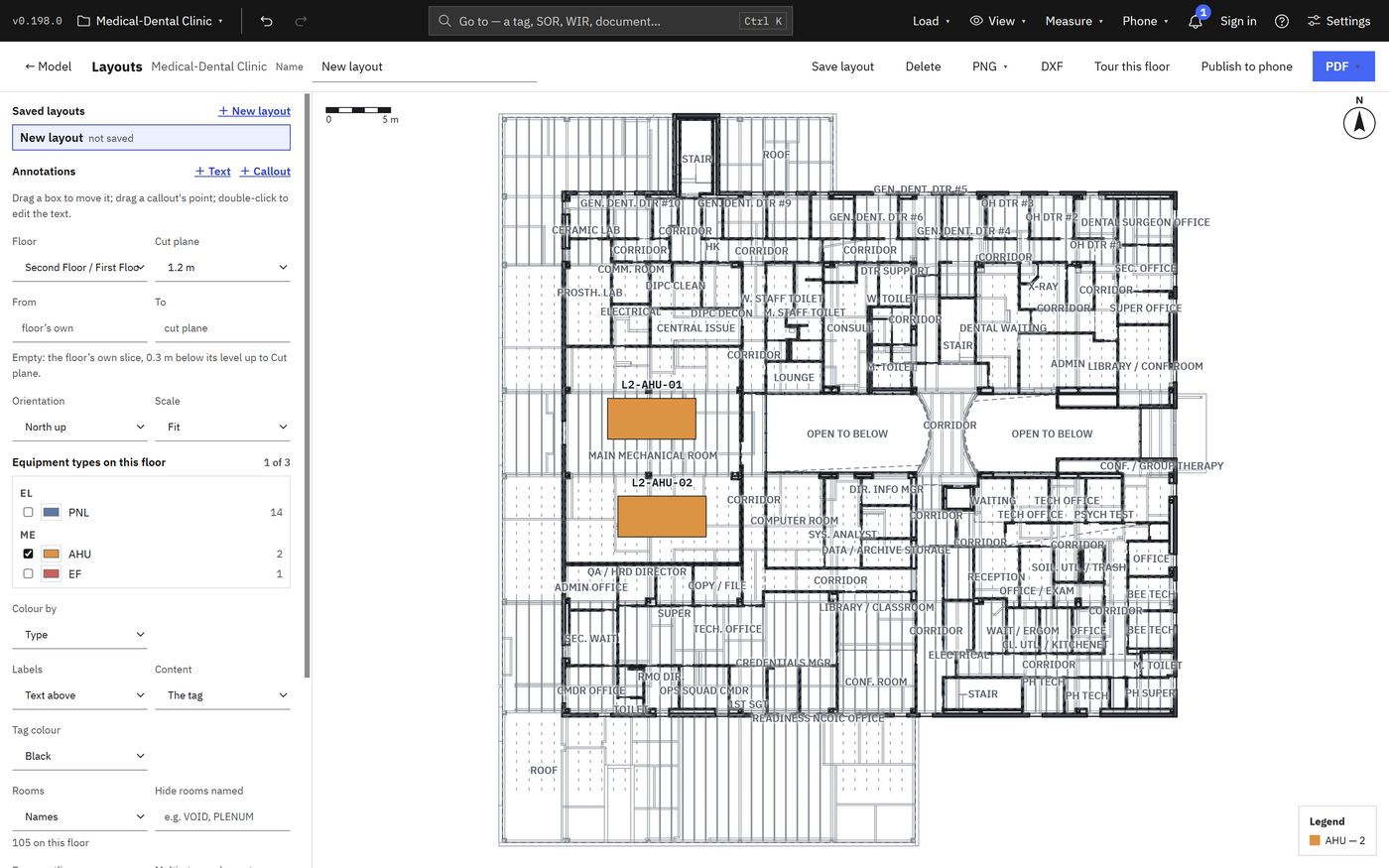
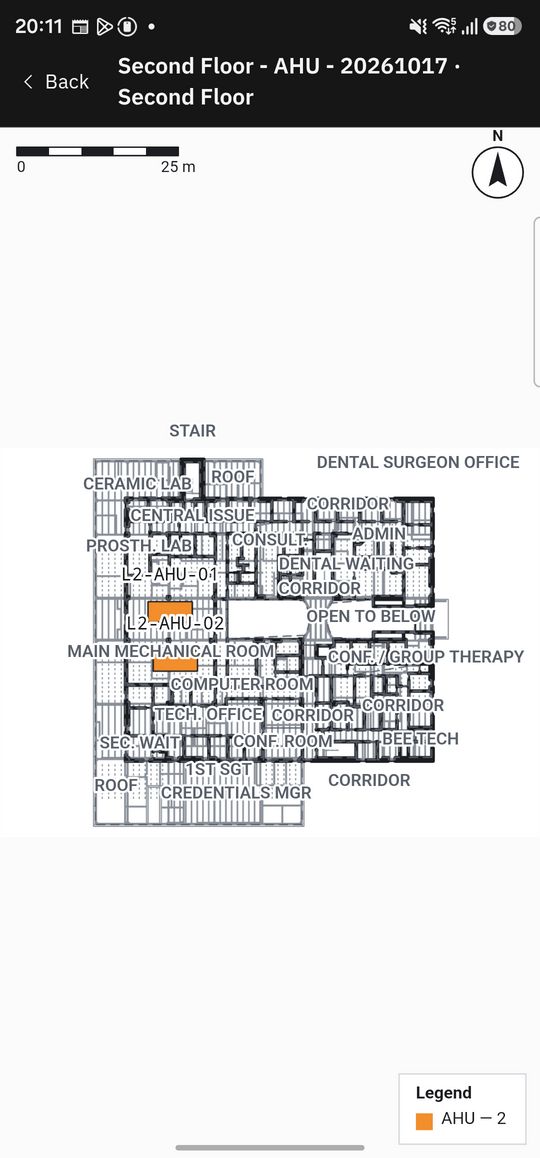
Layout drawings, cut from the models
Pick a floor and the equipment types to show: Snagtwin cuts the plan from the loaded models, with the rooms named from the model and every item tagged.
Coloured by type, by status at a stage or in one colour
A floor's own slice, or between two heights above it
A vector PDF sheet, PNG and DXF
Published to the phone, where a tap on an item opens its line item
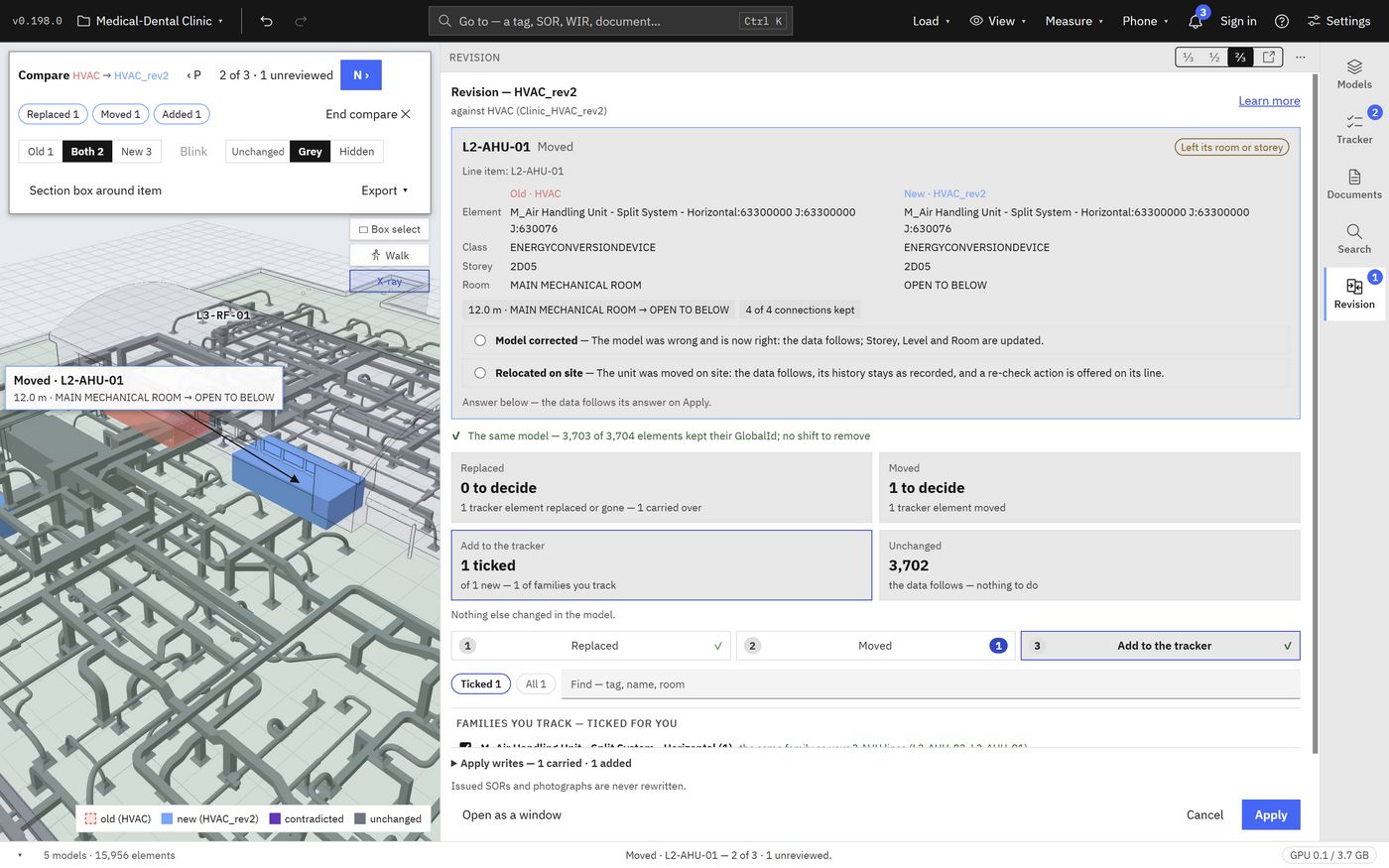
A new model revision, compared in 3D
Replace a model with its next revision. Snagtwin matches the elements, places the new revision where the old one stood and asks only about the elements your tracker uses.
Moved, replaced and added elements, each shown in 3D before you apply
Photographs, SORs and QR labels follow the element to the new revision
New elements of a family you track offered as new line items
Tours of the open items
Play a tracker's SORs, actions or photographs stop by stop: the model travels to each element, with its photograph, comment and history beside it, for a review meeting or a walk-down.
Change a status, close an action or raise an SOR without leaving the tour
Ordered by discipline, by status or as a walking route, floor by floor
Saved, played again and printed as a PDF booklet
Section box and X-rayCut the model on three axes; see the selected element through the walls in front of it.
WalkWalk through the building at eye height, with stairs, walls and doors.
Checklists and actionsChecklists on a line item, and action items with their owners, due dates and photographs.
QR labelsPrint a label sheet for the line items; on site, a scan opens the line.
DocumentsDocument lists and updates from Excel, their statuses, ageing and the source of each value.
Inspection requestsThe WIR register mapped to line items and stages, from the document control export.
Several trackersEquipment, lifts, stairs: several trackers in one project, an item kept in sync across them.
Go toOne box finds a tag, an SOR, a WIR or a document, and takes you there.
On site
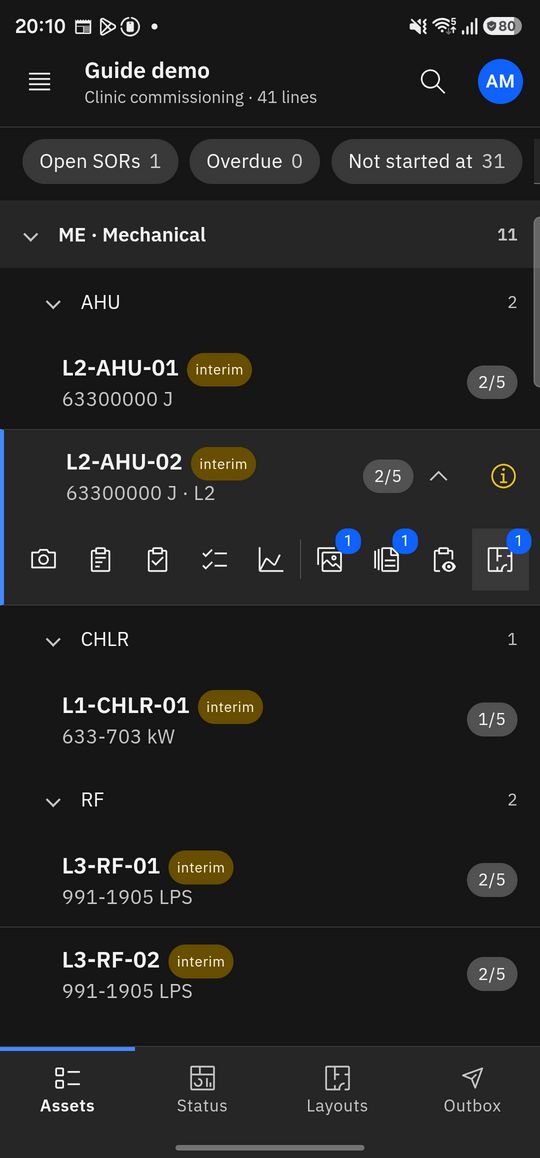
Snagtwin Field takes the project to the element.
The phone app opens the same project as the PC: find a line item, photograph it, fill its checklist, raise an SOR or an action, and change its status, where the work is.
A line item and its toolsAn SOR on the phoneA layout drawing from the PCThe 3D view in status colours
Offline
Keep a project on the phone with its drawings and photographs. Records wait in the outbox and are sent when the phone is back online.
Photographs as evidence
A photograph filed on a line item is stamped with the line's QR code and the time it was taken, so it always leads back to its element.
Numbered by the project
An SOR raised on a phone is numbered by the project, never on the phone, so a number is never given twice.
Reports
Reports come from the record, not from a spreadsheet kept beside it.
Every report is the issuer's document: your logo at the top left, your client's at the top right, in portrait or landscape, as PDF, Excel or both.
Report
What it holds
Site observation report
One SOR with its element, observation and numbered photographs
SOR report
The register with a thumbnail a row, then each SOR's card
Weekly report
The week's figures, charts and open items, for one tracker or all
Action plan
Actions with their owners, due dates and photographs
Documents
The register's status, ageing and charts
CompleteIn progressNot startedFailedN/A
The status colours are the 3D view's, so a report matches the model. Sample data.
[Your logo][Client's logo]
WEEKLY REPORT
Commissioning progress, week 42
Medical-Dental Clinic · 17 Oct 2026
41Line items
27.8 %Complete
3Open SORs
Line items complete by discipline, %
70
45
30
58
MEELFPPL
Open site observations
SOR
Tag
Status
Days
SOR-0012
L2-AHU-02
✕ Open
14
SOR-0013
L1-DB-02
◐ Responded
6
SOR-0014
L1-CHLR-01
✕ Open
2
Medical-Dental Clinic · Weekly reportPage 1 of 6
A report cover on the brand's template. Sample figures.
Teams
One project for the office, the site and the reviewer.
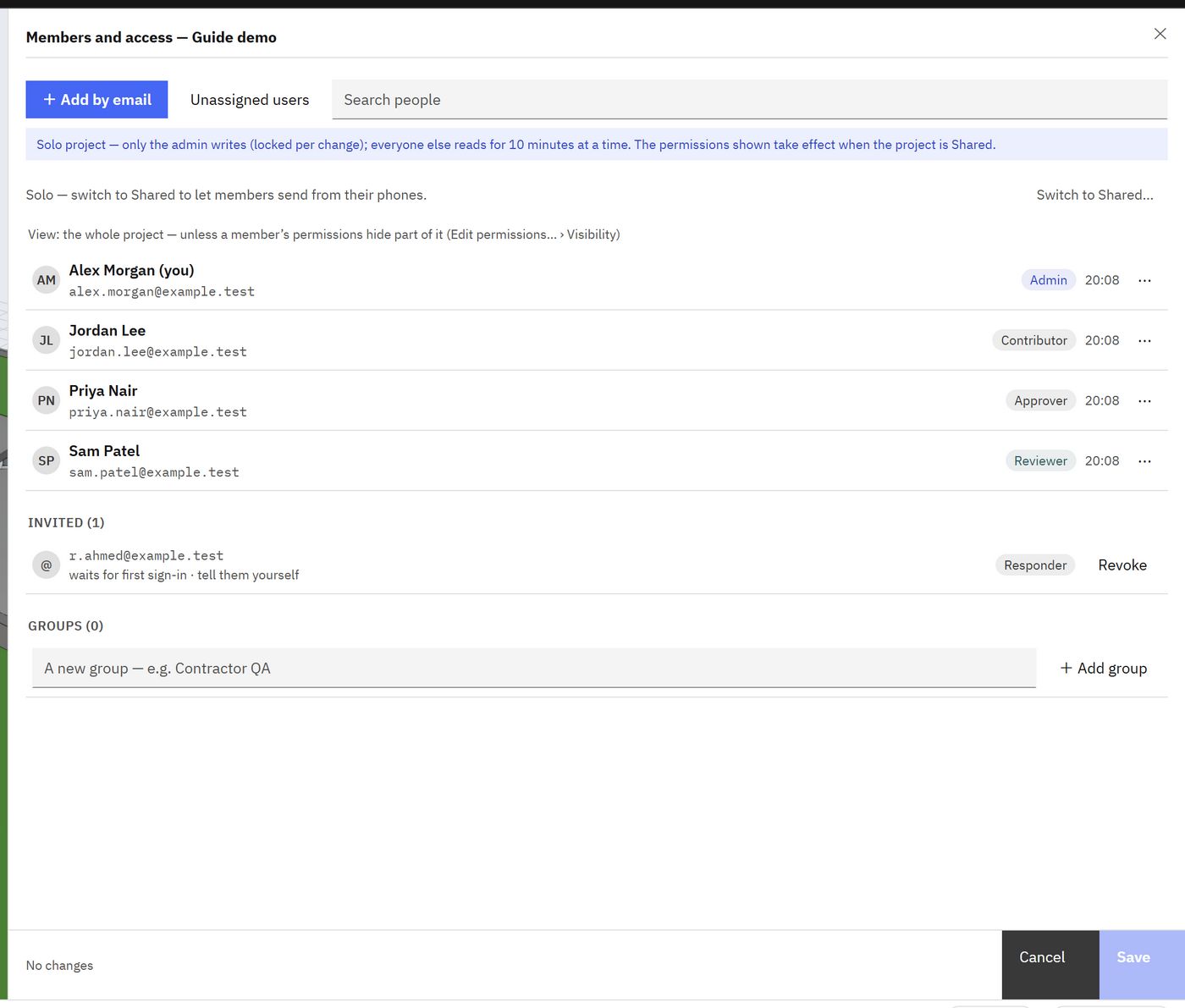
A cloud project keeps the PCs and the phones of a team on one record. Each member signs in and works within their role.
Roles and permissions: who reads, who sends from site, who changes the record
A view limited to some trackers or record types, for a subcontractor or a client
Review workflows with approve, return and reject, due dates, reminders and escalation
One writer at a time, so two PCs never overwrite each other
An audit log of who did what, and when
Members and access, with sample people.
Contact us for a demonstration on your own models.